














Practical guides for everyday life
Build a Simple Task Tracker in Google Sheets with Dropdowns
Create a small task tracker with clear status choices, an owner and a next action. Learn when to use dropdowns or checkboxes and how to keep the sheet usable.
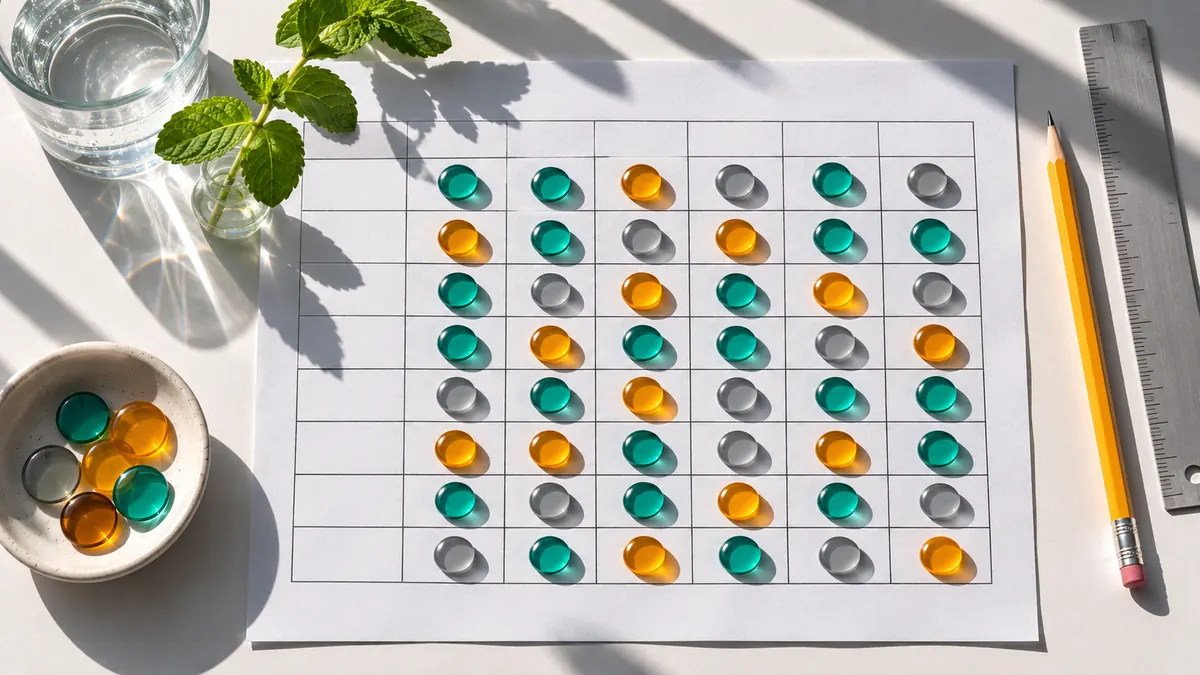
Design the tracker around one decision
A useful task tracker should answer a practical question, such as “What needs attention next?” It does not need twenty columns or a complicated dashboard. Begin with a small project that has fewer than ten tasks. You can expand the structure after you have used it for a few days.
This example uses a shared study project, but the same structure can work for a household plan or a small personal assignment. The important distinction is between a task, which describes work, and a status, which describes its current condition. “Presentation” is too broad for a useful task. “Draft the opening three slides” gives you something that can actually be started and completed.
1. Create five clear columns
Use columns for Task, Owner, Due date, Status and Next action. These are suggested labels for this example, not mandatory Google Sheets fields. Add a few real tasks before changing fonts or colors. If you cannot write a clear next action for a row, the task may need to be broken into smaller parts.
For example, “Collect examples” could have the next action “Ask the group for two examples by Tuesday.” Keep one task per row. Do not merge several unrelated jobs into a single cell because that makes ownership and status ambiguous. A small table with consistent rows is easier to sort and review than a visually elaborate sheet with information scattered across the page.
2. Add a dropdown with a few states
Select the cells in the Status column and use Google Sheets' dropdown or data-validation controls. Create a short set of choices such as Not started, In progress, Waiting and Done. The official help explains how to create and change these lists. Keep the initial choices distinct enough that a reader can choose one without debating their meaning.
Define “Waiting” in a short note above the table: for example, work cannot continue until another person responds. Without that definition, one person might use it for an untouched task while another uses it for a genuine dependency. A dropdown improves consistency only when the team understands the choices. More options do not automatically make the tracker more accurate.
3. Use checkboxes only for yes-or-no questions
A checkbox works well for something that is either complete or incomplete. A dropdown is better when you need several states. Avoid using both to describe the same thing unless you have a clear reason, because they can disagree. A row marked Done with an unchecked completion box creates uncertainty.
A sensible separate checkbox might confirm “Final file checked” after the writing task is done. In that case, it represents a distinct quality check. Google Sheets provides checkbox insertion controls; the exact interface varies by device. Test the setup with two sample rows before applying it to the whole project. Decide what each field means in plain language.
4. Make the next action small enough to do
The Next action column is where a tracker becomes a work aid rather than a report. “Continue research” is vague. “Read the introduction of the saved report and note two relevant findings” is concrete. It also helps the next person understand how to resume a paused task.
If a row remains In progress for several days, inspect the action instead of merely changing its color. Is it too broad? Is information missing? Does the owner know which result is expected? For the study-project example, “Finish slides” may become three rows: draft the argument, add one chart and rehearse the explanation. Splitting work should clarify responsibility, not inflate the task count.
5. Review the sheet before adding automation
At the same time each day or week, look at waiting tasks, overdue items and rows with no owner. Ask what decision is needed. Update the next action after the discussion. A tracker that is never reviewed will become stale even if its formulas and formatting are technically correct.
Use simple visual cues, but do not rely on color alone. Text labels remain understandable to people who cannot distinguish particular colors or who print the sheet in grayscale. If you sort the data, make sure the whole table stays together rather than sorting a single column independently. Keep a small test copy if you are learning unfamiliar operations.
A ten-minute quality check
Try handing the sheet to someone who has not built it. Ask them to identify the next task, who owns it and what counts as finished. If they need a long explanation, simplify the labels or add a concise example. You should be able to understand a row without searching through a separate conversation.
Finally, check sharing permissions before collaborating. Someone who only needs to read progress may not need editing access. Keep personal information out of a broadly shared tracker. The aim is a dependable small system: clear tasks, consistent states, visible ownership and a next action that makes starting easier. Add formulas or extra columns only when a real recurring need justifies them.