













Online communication guides
Stop Unwanted Chrome Notifications Without Blocking Everything
Find which website sends unwanted alerts, revoke its notification permission and distinguish browser notifications from pop-ups and app messages.
Identify the sender before changing settings
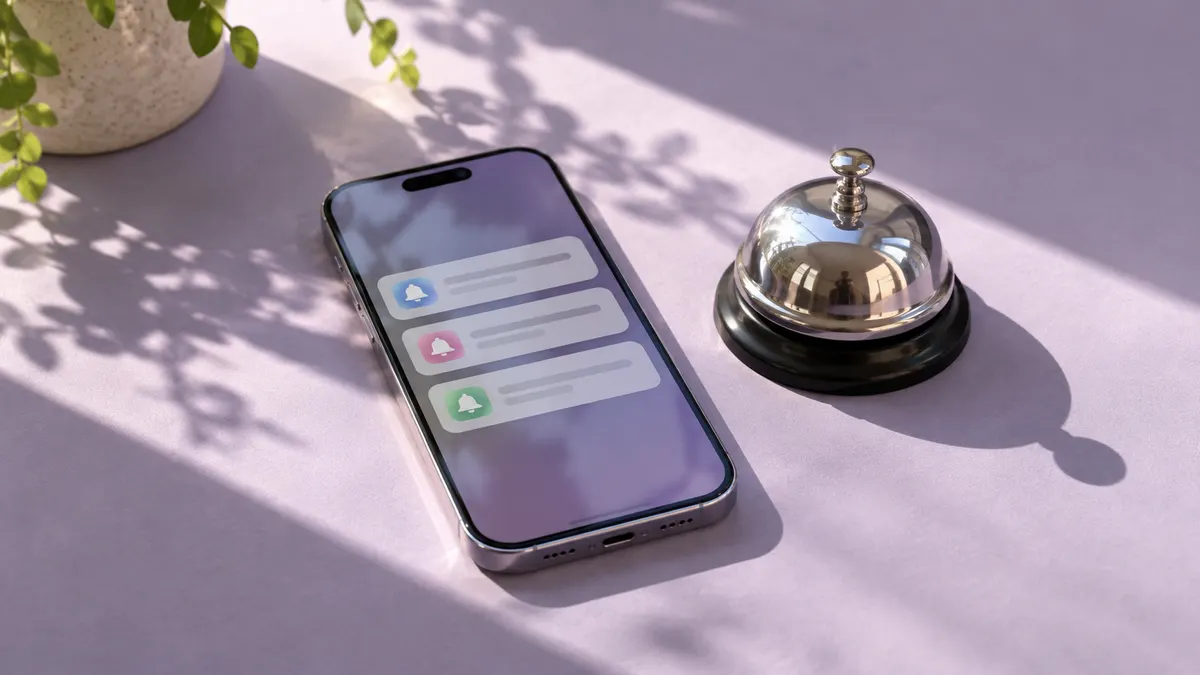
An unexpected alert can look as though it comes from your computer even when it was sent by a website. Before tapping it, look for the browser name and website address shown on the notification. Note those details without opening the alert's button. Your first task is to identify the source, not to follow the message's instructions.
This guide focuses on unwanted website notifications in desktop Chrome. A new browser tab, an advertisement inside a page and a message from a separate app are different things. They may need different controls. If you disable the wrong category, the unwanted message may continue while useful reminders disappear.
Review Chrome's notification permissions
Open Chrome Settings, then Privacy and security, Site Settings and Notifications. Review the sites allowed to send notifications. Locate the address you noted and change its permission to block notifications. Google's help also explains how to add an address to the blocked list and choose a default notification behaviour.
Read the full address carefully. Similar-looking names can refer to different sites. If you use more than one Chrome profile, inspect the profile associated with the alert. There is no need to erase your entire browsing history just to revoke one website's notification permission.
Keep the alerts you actually use
Make a short decision list before changing every entry. You may want calendar reminders from one service and no alerts from a shopping page you visited once. Review unfamiliar entries first, then decide whether the remaining services genuinely need to interrupt you. A more selective list is easier to maintain than a list of permissions granted automatically.
For example, someone who uses a browser calendar for work might keep that permission and block a news site that sends frequent headlines. Someone else may prefer checking both services manually. The useful question is whether an alert helps you take action at the right time, not whether the site is familiar.
Distinguish notifications from pop-ups
If a message appears as a system-style card outside the page, investigate notification permissions. If a click opens a separate window or tab, inspect Chrome's pop-up controls instead. If the content stays inside the page you are viewing, it may be part of that site's design. Google's documentation treats notifications and pop-ups separately.
A simple test is to note exactly where the message appears and which action preceded it. Do not keep clicking the same misleading button to reproduce it. If the notification names a completely different application, use that application's settings. Changing Chrome permissions will not necessarily affect alerts generated elsewhere.
Do not turn an alarming message into an installation
A notification claiming that a device needs urgent repair is not itself evidence of a diagnosed problem. Do not install a suggested program or provide a password just because an alert creates pressure. If you are concerned about an account, open the service through the official app or an address you normally use and check there.
If you already followed a link, separate what happened from what you fear happened. Did you only view a page, download a file, run an installer or enter credentials? These are different situations. Use the official security and recovery guidance for the affected service, and give a support person a factual description rather than forwarding sensitive account details.
Confirm the fix and make future prompts easier
After blocking the unwanted sender, continue using the browser and check whether that site's new alerts stop. An old alert may still be sitting in the operating system's notification history; clear it after noting the source. If new alerts continue, look for another address or browser profile instead of assuming the first change failed.
Chrome offers quieter permission prompts, and you can also choose a stricter default if you do not need website notifications. Read permission requests before accepting them. A page asking you to allow notifications is asking for a lasting capability, not simply asking whether you want to continue reading.
Will blocking notifications delete my account? It changes a browser permission, not your membership of that website. Can I turn useful notifications back on later? Revisit the site's permission setting and allow it deliberately. The aim is control over interruptions, not losing access to the services you use.