














Online communication guides
Transfer Android Photos to Windows by USB Without Losing Files
Copy photos from Android to a Windows PC, fix a charge-only connection and verify your backup before deleting anything from your phone.
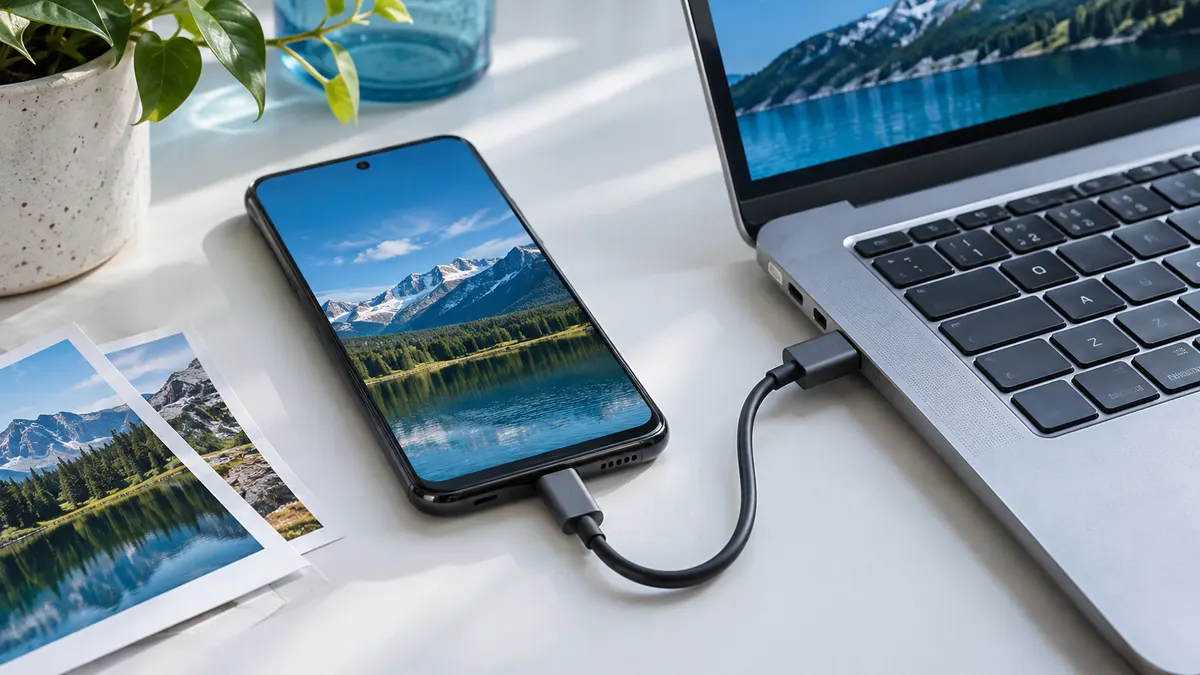
Use a copy-first workflow
Moving a photo collection is less stressful when you separate copying from deleting. First create a second copy on the computer, then check that it works, and only afterwards decide what should remain on the phone. This avoids turning one interrupted transfer into a missing collection.
The steps below describe a USB transfer from Android to Windows. They do not assume that every picture shown in your gallery is stored locally on the phone. Before starting, pick three recent photos and one short video that you know are on the device. Use that small group as your trial batch. You can transfer the larger collection once the route is clear.
Prepare the destination before connecting
Create an easy-to-find folder on the PC, such as Pictures, Phone backup, then a dated subfolder. Check that the computer has enough free space for the collection you intend to copy. If you share the computer, choose an account and folder appropriate for private photographs. Avoid a public desktop folder that other people use casually.
Keep the phone and laptop on a stable surface where the cable will not be pulled. If a long session is likely, plan around battery life and other work. Closing a transfer window because you need to rush out is an avoidable source of uncertainty. Decide whether you are copying one trip, one month or the entire local camera folder.
Connect and choose File Transfer
Unlock the Android phone and connect it to the computer with a USB cable that supports data. On the phone, open the USB charging notification and select File Transfer under the USB-use options. Open the device in Windows and locate the files you want. Camera photographs are often in a DCIM folder, but other apps may store images elsewhere.
Copy the trial batch into your prepared destination. Google's official Android instructions describe the USB permission choice and recommend ejecting the device from Windows when finished. A charging indicator alone does not prove that file transfer has been enabled or that the cable can carry data.
If Windows cannot see the pictures
First unlock the phone again and check its USB mode. Then try another data-capable cable or USB port. Google notes that some USB cables cannot transfer files. Change one thing at a time so you can identify what made the device appear. If another computer is available and trusted, a comparison can help separate a phone connection problem from a PC problem.
If some photographs appear but others do not, check where the missing items are actually stored. A gallery can show media from different folders or online services. Do not delete unfamiliar folders to make the list simpler. Write down the missing date range or album name and investigate that specific group. Avoid unnecessary developer settings or factory resets for an ordinary file-copy task.
Verify the backup before cleaning up
Open several copied photos from the computer's destination folder, not from the phone window. View a portrait, a landscape and an older image at a larger size. Play the copied video and seek to a point near the end. Compare the number of selected files with the copied batch, and investigate any skipped-file or duplicate-name prompt.
For important memories, one extra location is sensible: another drive or a backup service you already understand. The key is that you can find and open the copy. A folder with the right name is not enough. Keep a brief note of the date range you transferred so you do not have to guess next time.
A repeatable monthly routine
Create a new dated folder, copy a manageable batch, check it and record what you completed. If Windows asks whether to replace a file with the same name, compare the files before choosing. Different images can have similar names, especially when several devices are involved. Keeping separate device folders reduces confusion.
Does copying by USB automatically remove the originals? A copy operation should leave the source in place; deliberately choose copy rather than cut or move. Will this save every image in a cloud gallery? Only files available through the selected local storage are part of this transfer.
Finish by safely disconnecting the device. If you later remove phone copies, review the behaviour of your gallery and cloud backup service first so that a local cleanup does not unintentionally remove a synced copy elsewhere.