














Online communication guides
Mobile Video Calls Buffering? Try These Basic Fixes
Simple steps to troubleshoot a choppy mobile video call, from checking the connection to reviewing app permissions and data settings.
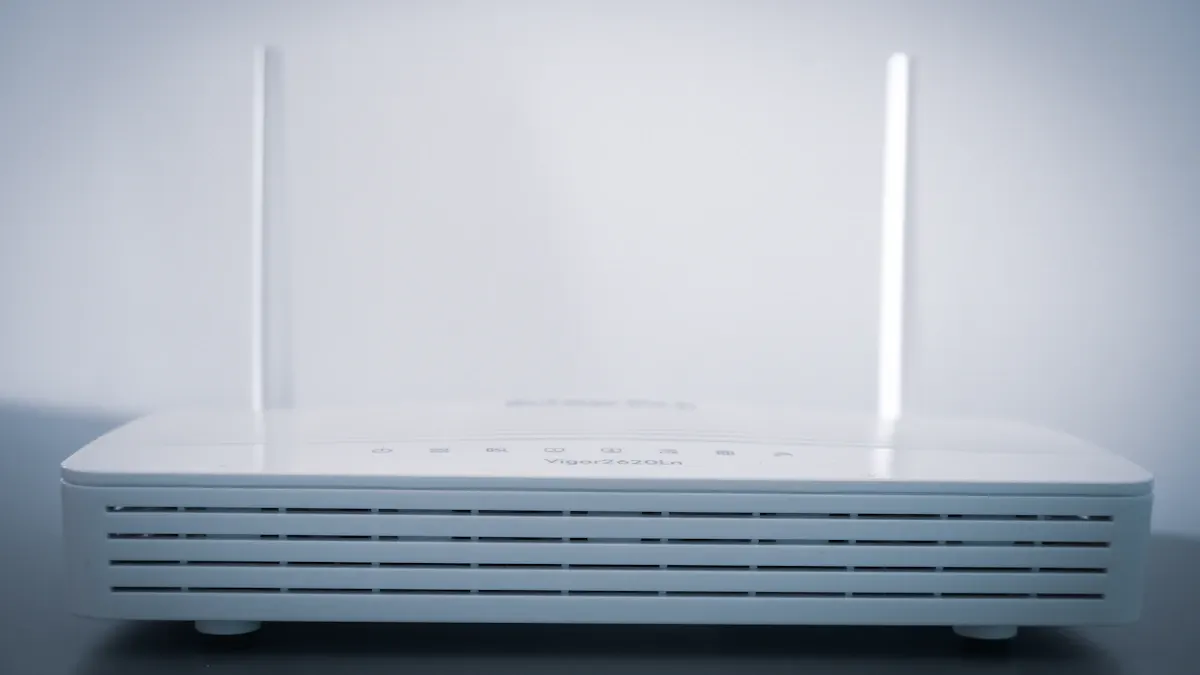
Check whether the connection is stable
Move closer to your Wi-Fi router or try a different trusted network. On mobile data, check signal strength and whether your data plan is active. A speed test is only a momentary snapshot; if the connection keeps changing, video quality may change too.
Reduce competing network use
Pause large downloads, app updates and other video streams while you test the call. If several people share the same connection, ask whether they can pause bandwidth-heavy activity for a few minutes. Restarting the router may help if other devices also have trouble.
Review the app and phone settings
Close and reopen the calling app, then check for an update from the official app store. Confirm the app has camera and microphone permission. Battery-saver or data-saver settings can limit background activity; review them if the app disconnects when you switch screens.
Protect your mobile data
Video data use varies by calling service, video quality, call length and network conditions, so there is no single reliable amount for every call. Check your phone's per-app data usage and your carrier's account page. Use Wi-Fi when convenient and turn off video if you only need audio.